There are additional configuration options (and protections!) not enabled by default. These are
currently enabled via a special anchor link and stored as a flag in local storage. They aren’t
secret, but not usually needed unless advanced tuning is required.
Why do this instead of
user flags? Because startup, that’s why.
These are hidden for a reason, don't share with prospects.
Copy and paste the following URL
exactly. This is intentionally not a link.
https://useast.prompt.security/employees/manage/Employees%20Connector/policies#isAdvanced=true
…and
you should see the following (it may reload the console first):
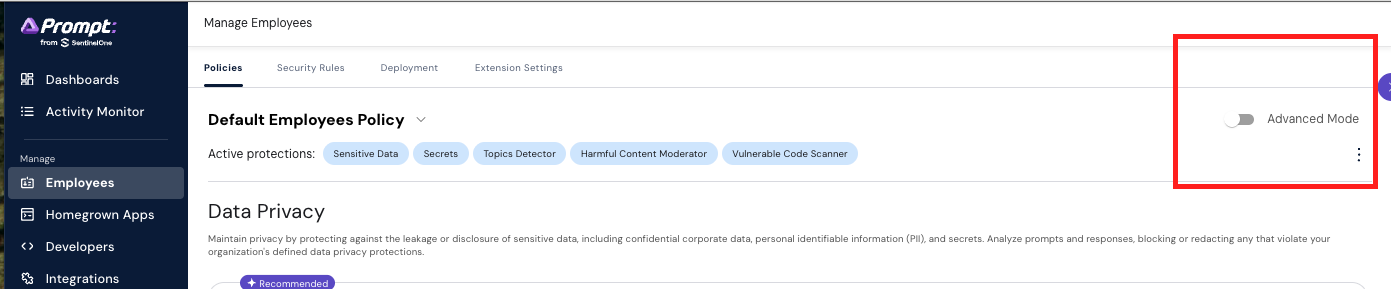
Enable that 'advanced mode' toggle, additional protections and thresholds will be available.
Select the policy 'Exercise 2' in the dropdown before proceding.
Exercise 2.1 - Detect IP address without a context
word
Expand the Sensitive Data protection and scroll down until you see thresholds.
Higher thresholds are more strict and will have fewer false positives, but miss more true positives
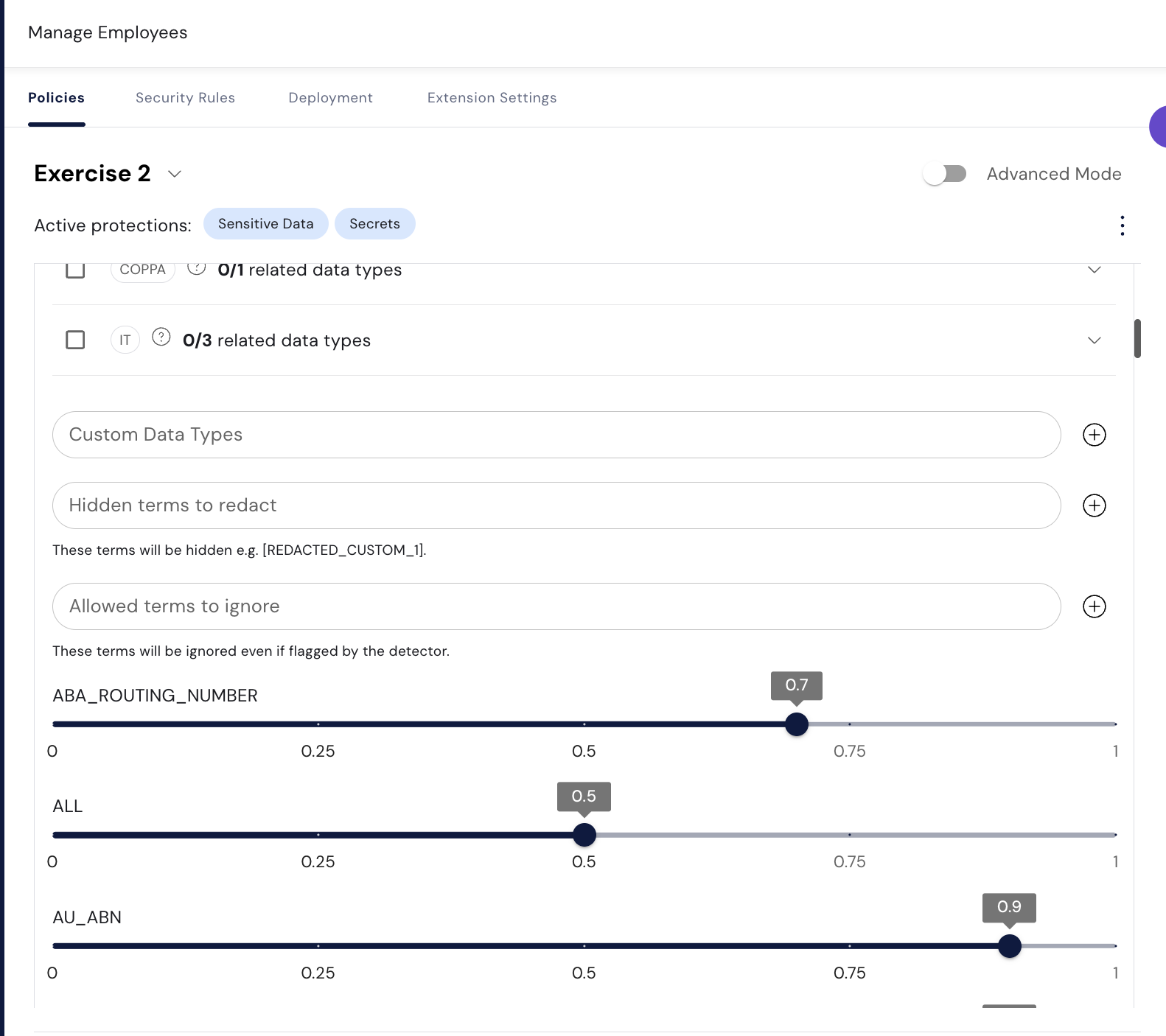
What is the risk score required to catch a naked IP address?

Exercise 2.2 - Detect a passport with a typo in the context word
In the default policy the following will be correctly detected as an Australian
passport:
My passport number is E4729018
Adjust the threshold until it also catches the version with a
typo:
My passprot number is E4729018
Exercise 2.3 - Other Regional Entities
Find some other relevant data types. See if the thresholds matter for detection. Not all will have flexible matches or require context words.
Exercise 2.4 - Detect ‘invisible characters’
Copy the following example EXACTLY. Find and enable a protection to detect and block some unwanted characters. (Try https://invisible-characters.com/view.html to see the actual message)
There are valid attacks already in the wild using these methods to inject unwanted content into
documents. Models will see the text, and treat them as instructions.
This is a sample text with common invisible characters: Here are some unusual characters: ㅤ⠀
END-----